
VSL editing: how to edit a video sales letter for retention, not beauty
This guide covers editing a video sales letter for one outcome, keeping viewers watching until the offer: pacing and cuts, text-on-screen slides, b-roll, captions, sound, pattern interrupts, the pitch section, export settings and versions for testing, with a checklist at the end.
On this page
- What VSL editing is for
- Pacing: how fast should you cut a VSL?
- Text-on-screen VSLs: the slides format
- B-roll that illustrates the claim
- Captions: burned-in or player captions?
- Sound: voice first, music low
- Visual pattern interrupts
- Editing the pitch section
- Export settings for streaming
- Versioning for tests
- A VSL editing checklist
- Frequently asked questions
VSL editing has one job: keep the viewer listening until the offer. Cut on the beats of the script, remove pauses that don't do work, put key words on screen, use b-roll only when it shows what the voice is saying, keep the voice clear and the music low, slow down for the pitch, and export a clean master your host can stream at every quality level.
What VSL editing is for
A brand film is edited to impress. Direct response video editing has a different goal: a VSL is edited to be understood and followed to the end. Beautiful footage that distracts from the sentence being spoken is a cost, not a bonus, and plain footage that makes the argument easier to follow is worth more than any color grade.
The editor's report card is the retention graph. Every decision is a bet that this cut, this graphic or this pause keeps more people watching than the alternative, and the graph shows which bets paid (how to read a retention graph). Knowing how to edit a VSL starts before the edit: lock the script first, because editing can't fix a weak argument, and re-cutting around late script changes wastes days. The VSL script guide covers the writing side, including how to mark visual changes in the script itself.
Pacing: how fast should you cut a VSL?
Pace comes from the script, not from a timer. Cut on sentence and idea boundaries; a cut in the middle of a sentence feels like a glitch unless b-roll covers it. Four rules set the rest of the pace:
Four pacing rules
1Trim dead air, keep breaths
What happens: Remove false starts, long pauses and repeated takes, but leave natural breaths.
Why it matters: An edit with every breath removed sounds machine-made and can cost the presenter credibility.
2Change something when the idea changes
What happens: A new point deserves a new visual: a punch-in, a cut to the demo, a graphic. During long explanations, a visual change every few sentences is a reasonable starting rhythm; let the retention graph tune it from there.
3Hide jump cuts with punch-ins
What happens: On a talking-head VSL, alternate between a wide and a tighter crop of the same shot.
Why it matters: The cuts then read as intentional.
4Slow down for proof and price
What happens: Let those sections breathe.
Why it matters: Fast cutting in a demonstration invites doubt ("what did they cut out?"), and a rushed price feels like something to hide.
Text-on-screen VSLs: the slides format
The text-on-screen format, words on a plain background synced to a voiceover, is fast and cheap to produce. Its rules are about legibility and sync. Treat these as starting points to test, not laws:
| Element | Starting point | Why |
|---|---|---|
| Words per screen | One short phrase, often 3 to 8 words | Readable in the time it takes to say it |
| Typeface | A plain sans-serif in a bold weight | Legible at small sizes and low bitrates |
| Size | As large as the phrase allows | It has to survive a phone screen and a 480p stream |
| Contrast | Dark on light or light on dark, no busy backgrounds | Readable in sunlight and on cheap screens |
| Highlight | One key word per screen, in color or underlined | Guides the eye to the point |
| Sync | Text appears exactly as the voice says it | Reading and hearing the same words |
| Motion | Hard cuts, no slow fades or typing effects | Waiting for text costs attention |
A quick legibility test: export one frame, shrink it to roughly the width a phone gives a 16:9 player held upright (about 360 to 400 pixels), and read it at arm's length. If you squint, the text is too small.
B-roll that illustrates the claim
B-roll earns its place when it shows exactly what the voice is saying. When the presenter says "the tab releases a little every time you water", show water reaching the soil and the tab, not a generic sunlit living room.
- Literal over decorative. Show the mechanism, the product in use and the problem as the viewer experiences it.
- Real over staged where it matters. Use real footage of the real product, and label animations and simulations as illustrations.
- No borrowed authority. Lab coats, hospital corridors and stethoscopes imply medical endorsement. If no doctor endorses the product, don't imply one.
- Honest before and after. Before-and-after shots must be real, and typical or paired with what typical results look like.
- Licensed footage only. Check stock licenses for advertising use, especially footage with recognizable people.
Captions: burned-in or player captions?
Captions carry the silent teaser on muted-autoplay pages, help people who watch without sound or in a second language, and are part of baseline accessibility: WCAG success criterion 1.2.2 (Level A) calls for captions on prerecorded video and accepts either open captions, which are always visible, or closed captions, which viewers can switch off (W3C). Here is how the two kinds compare:
Burned-in vs player captions
Burned-in (open)
- Visible without sound? Always
- Languages: one per export
- Fixing a typo: re-export the video
- At low streaming quality: blur with the video
- Viewer control: none
Player captions (closed)
- Visible without sound? When on; a track can be on by default
- Languages: one file per language
- Fixing a typo: edit a text file
- At low streaming quality: stay crisp
- Viewer control: can be turned off
For line length and reading speed, Netflix's English timed text guide is a useful reference: at most 42 characters per line, no more than two lines, and up to 20 characters per second for adult programs (Netflix timed text style guide). In RevvyScales you upload .vtt or .srt files per language, choose one track to be on by default, and viewers get a CC button (subtitles and captions). Our VSL captions guide covers formatting and testing in detail.
Sound: voice first, music low
In a VSL, the argument travels through the voice, so clear audio matters more than pretty footage. Mix the voice first and build everything else around it.
- Clean the voice lightly. Remove low rumble, reduce background noise without making the voice sound underwater, compress gently so quiet words don't vanish, and tame harsh "s" sounds.
- Keep levels consistent. The voice should sit at the same loudness from the first minute to the pitch. Level jumps between takes are as jarring as jump cuts.
- Music under, never over. Use instrumental tracks, and keep the bed low enough that you can't follow the melody while the presenter talks. Drop it entirely in proof or price sections if it competes.
- No false endings. Swells and stings that sound like a finale tell viewers the video is over, and some will take the hint and leave.
- Check on real devices. Play the final mix on a phone speaker and on cheap earbuds, because that's how many viewers will hear it.
Visual pattern interrupts
A pattern interrupt is a planned change that resets attention: a cut to a demonstration, a punch-in, a chart, an on-screen question, a change of location, a prop. Interrupts work when they land on meaning, at the points where attention naturally sags:
- the transitions between script beats
- the end of any long explanation
- just before the mechanism is revealed
- the run-up to the pitch
Use data to place them. The steepest drops on the retention graph show where viewers leave; put the interrupt where the slope starts, not where it ends. RevvyScales heatmaps (Growth plan and up) show engagement intensity across the video timeline, which helps you spot the stretches viewers engage with least.
Here is that rule on an illustrative retention curve:
Put the interrupt where the slope starts
Illustrative retention curve: share of viewers still watching
Minutes into the video
Show the numbers
| Minutes into the video | Still watching |
|---|---|
| 0 | 100% |
| 1 | 78% |
| 2 | 71% |
| 3 | 68% |
| 4 | 62% |
| 5 | 54% |
| 6 | 48% |
| 7 | 45% |
| 8 | 44% |
| 9 | 43% |
| 10 | 42% |
Two kinds of interrupt to avoid: fake interface elements, such as a fake notification, a fake "connection lost" screen or a fake system alert, that trick viewers into a reaction; and shocks unrelated to the message, which buy a second of attention and spend trust.
Editing the pitch section
The pitch is where the edit should get calmer, not busier.
- Fewer cuts, more clarity. Keep the presenter on camera or show clean offer graphics; no rapid montage.
- Match the page exactly. On-screen bundles, names, prices and guarantee terms must be identical to the offer block under the video.
- Show numbers as they're spoken. Put the price and the per-unit math on screen at the moment the presenter says them.
- Mark the pitch second. Note the exact timestamp where the offer is first presented. That's the second the buy button should appear; in RevvyScales, you set it as the pitch time for the timed reveal (player conversion features).
- Give the post-pitch section its own feel. The FAQ and second close should read as a continuation for viewers still deciding, with the button already visible.
Export settings for streaming
Hosts that stream adaptively re-encode what you upload, so your job is to hand them a clean, high-quality master. RevvyScales, for example, transcodes every upload into an adaptive HLS ladder at 1080p, 720p and 480p. A sharp 1080p master is the best any viewer will see, and the 480p version is what viewers on weak connections get.
In RevvyScales, the master goes in here:
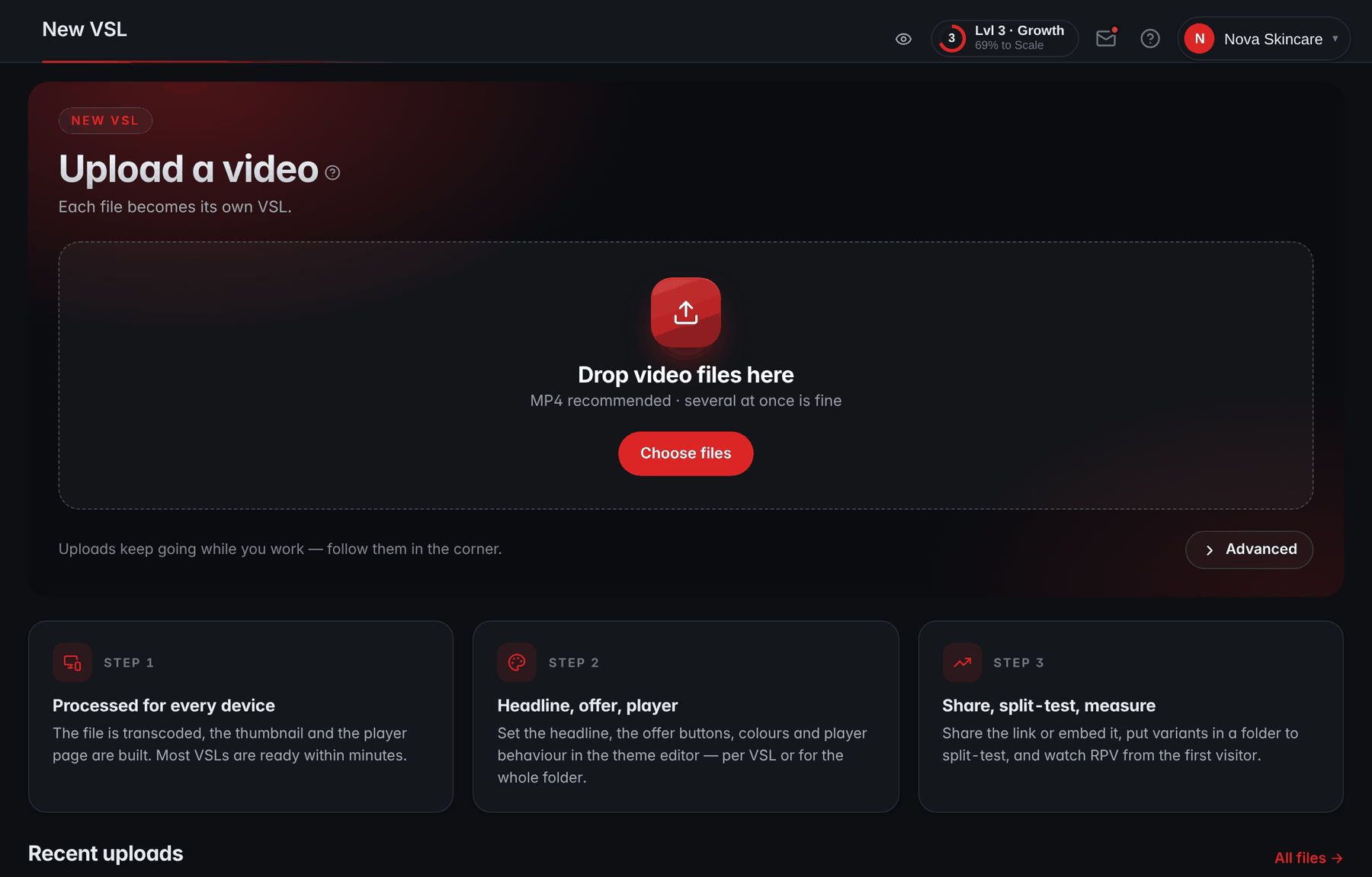
- MP4Drop the finished master here; MP4 is the recommended container.
- One file, one VSLEach file becomes its own VSL, so every test version goes up as a file of its own.
- TranscodingEvery upload is transcoded into an adaptive HLS ladder at 1080p, 720p and 480p.
YouTube's published upload recommendations are a sensible reference for any platform that re-encodes (YouTube recommended upload encoding settings):
| Setting | Reference value |
|---|---|
| Container | MP4 |
| Video codec | H.264, High Profile, progressive scan |
| GOP | Closed, half the frame rate |
| Chroma subsampling | 4:2:0 |
| Bitrate at 1080p | 8 Mbps at 24 to 30 fps; 12 Mbps at 48 to 60 fps |
| Audio | AAC-LC at 48 kHz, stereo |
Upload at a higher bitrate than viewers will stream, because every re-encode loses detail. Keep the frame rate you shot at, and don't upscale 720p footage to 1080p expecting it to look sharper. Then watch the uploaded VSL at its lowest quality: if text is hard to read at 480p, it's too small.
The 9:16 cut for phones
A 16:9 video on a phone held upright fills only a strip of the screen. A dedicated 9:16 cut reframes the presenter, re-lays the on-screen text larger and centered, keeps graphics clear of the player controls and lifts captions above the bottom edge. Keep the timing identical to the landscape cut, so anything tied to timestamps, such as the pitch reveal, caption files and your retention notes, lines up in both. On Growth plans and up, RevvyScales lets you attach a portrait companion video: phones and tablets get the 9:16 cut and desktops get landscape, with the same URL and analytics (portrait companion video).
Versioning for tests
Every test means another version of the video, and versions multiply fast. A little discipline saves days.
- Put the facts in the file name. For example, slowroot_leadB_body3_pitch-14m02s_2026-10-11.mp4: product, lead, body version, pitch second and date, everything you need to set up the test correctly.
- Lock the body, swap the lead. Lead tests keep everything after the first minute or two identical. If a new lead is longer or shorter, the pitch second moves, so note each version's pitch time.
- Keep a change log. One line per version: what changed, why, and which test it belongs to.
- Don't re-cut for speed. To test faster delivery, test playback speed in the player instead of re-editing. On the Growth plan and up, RevvyScales can show playback-speed variants of one VSL by weight, with each viewer kept on the same speed (speed A/B test).
- One VSL per version. Upload each version as its own VSL and split traffic between them in a folder, so each visitor keeps seeing the same version (folders and A/B splits).
A VSL editing checklist
Work through these before each export; your ticks stay in this browser:
Before each export
0 of 10 done
Frequently asked questions
What software should I use to edit a VSL?
Any mainstream editor works, because the format needs clean cuts, text, captions and basic audio repair rather than advanced effects. Pick the tool your editor is fastest in. What matters more is the workflow: a locked script, a consistent project structure, a template for on-screen text, and versioned exports with the pitch second in each file name.
How long does it take to edit a VSL?
It depends on the format and length. A text-on-screen VSL synced to a finished voiceover is quicker to cut than a presenter VSL with b-roll, demonstrations and a 9:16 version. A common time sink is changing the script after editing starts, so lock the script first and plan time for at least one revision after you review the full cut.
Should a VSL have background music?
It can, if the music stays well under the voice. A low, steady instrumental bed can smooth cuts and add energy to long sections. Drop it where clarity matters most, such as proof and price, and avoid swells that sound like an ending. If you're unsure, test a version without music against one with it and compare pitch reach.
Should I edit out all the pauses in a VSL?
No. Remove dead air, false starts and long hesitations, but keep natural breaths and the pauses that let an important point land. An over-tightened edit sounds machine-made and can make a presenter seem less trustworthy. A short pause before the price or after a key claim is often one of the most effective edits in the video.
What resolution should I export a VSL at?
Export at least 1080p at the frame rate you shot, with a generous bitrate, and let your host create the lower qualities. If your host streams an adaptive ladder that tops out at 1080p, a larger master won't reach viewers. Afterwards, check the lowest streamed quality, because that's where small text and fine detail break first.